The One Number to Remember: 1200 x 630
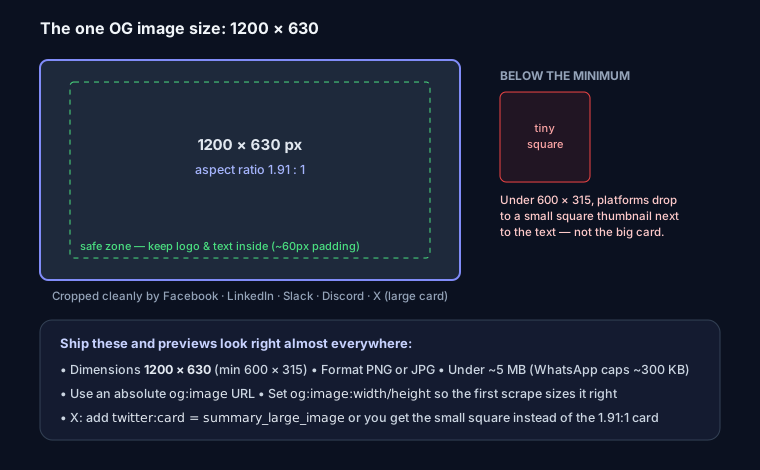
If you take nothing else from this page: make your OG image 1200 x 630 pixels. That's a 1.91:1 aspect ratio, and it's the size Facebook, LinkedIn, Slack, Discord, and X (with the large card) all crop to cleanly. Ship that and your link previews will look right almost everywhere.
The interesting part is why 1.91:1 is the safe default, and where individual platforms quietly do something different. Get that wrong and your carefully designed image shows up with the logo sliced off, or as a tiny square thumbnail next to a wall of text.
Size Requirements by Platform
| Platform | Recommended | Minimum | Aspect Ratio |
|---|---|---|---|
| 1200x630 | 600x315 | 1.91:1 | |
| X / Twitter | 1200x628 | 600x314 | ~1.91:1 |
| 1200x627 | 200x200 | 1.91:1 | |
| 1200x630 | 300x200 | 1.91:1 | |
| Slack | 1200x630 | 250x250 | 1.91:1 |
| Discord | 1200x630 | Varies | 1.91:1 |
The recommended column barely moves — a couple of pixels of height difference between platforms that nobody will ever notice. The Facebook 600x315 minimum matters more than it looks: go under it and Facebook won't render the large card at all. It falls back to a small square thumbnail, which is a much weaker link. Design at 1200x630 and you clear every minimum with room to spare.
Why 1.91:1 Wins, and How Each Platform Crops
1.91:1 isn't arbitrary. Facebook picked it years ago as the shape of the large link card, and because Facebook was where link previews mattered most, everyone else standardized around it to stay compatible. The scraper reads your og:image, and the platform decides how to fit it into whatever slot its UI has.
- X / Twitter has two card types.
summary_large_imagegives you the big 1.91:1 banner — that's what you want, and it reads yourog:image. Plainsummaryshows a small square thumbnail on the left with text on the right, and it center-crops your image to a square. If your key text sits at the edges,summaryeats it. Declare<meta name="twitter:card" content="summary_large_image">explicitly so you get the banner. - LinkedIn and Facebook both render 1.91:1 large cards from
og:image. This is the happy path — a 1200x630 image displays essentially untouched. - WhatsApp is the wildcard. For many links it shows a large preview, but for others (and depending on client version) it renders a small square thumbnail and center-crops your 1.91:1 image hard. Anything important near the left or right edge disappears. This is the single strongest argument for keeping your composition centered.
Because you can't control which slot a given platform hands you, you design for the worst case: assume a center square crop and a mobile-sized render.
Safe Zones and Text Legibility
Treat the outer edges of your 1200x630 canvas as expendable. Keep logos, headlines, and anything that must survive inside a centered ~1000x525 safe zone. If a platform square-crops to the middle, your message still lands.
Then assume the whole thing gets shrunk to the width of a phone. Practical rules that hold up:
- Headline text no smaller than ~60px on the 1200-wide canvas. Smaller than that turns to mush on mobile.
- High contrast only — light text on a dark panel, or dark text on a solid light block. Text laid directly over a busy photo is unreadable at thumbnail size.
- Two lines of copy, maybe three. This is a card, not a slide.
The classic failure is exporting a full blog-post hero with a paragraph of overlaid text. It looks fine in your editor and vanishes in the feed. If you want a deeper checklist on preparing images for the web, Image SEO: alt text, lazy loading, WebP covers compression and formats that apply here too.
File Weight and Format
OG scrapers are not patient. Some platforms cap how large a file they'll fetch, and a slow or oversized image can time out and leave you with no preview at all. Keep the image comfortably under ~1MB — realistically you should be down near 100–300KB.
Format choice is simple:
- PNG for anything with text, flat color, logos, or sharp graphics. It stays crisp and compresses those regions well.
- JPG for photographic backgrounds. A quality-80 JPG of a photo is a fraction of the PNG size with no visible loss.
- Not SVG. Most platforms won't render it as an OG image. WebP support is inconsistent across scrapers too — PNG or JPG remains the reliable choice.
Run the final export through a compressor (Squoosh, or sharp in a build step) before shipping.
The Tags That Actually Matter
<meta property="og:title" content="Your Page Title">
<meta property="og:description" content="A compelling description under 200 chars">
<meta property="og:image" content="https://yoursite.com/og-image.png">
<meta property="og:image:width" content="1200">
<meta property="og:image:height" content="630">
<meta property="og:image:alt" content="Plain-language description of the image">
<meta property="og:url" content="https://yoursite.com/page">
<meta property="og:type" content="website">
Two of these are quietly important:
og:image:widthandog:image:height. Declare them. When a scraper hasn't fetched your image yet, it uses these dimensions to reserve the correct card layout immediately. Skip them and the first person to share your link can get a blank or collapsed preview until the image is fetched and measured.og:image:alt. Describes the image for screen readers on platforms that expose it. Cheap to add, and it's the same discipline as the rest of your page — the same principle behind fixing a missing meta description.
The og:image URL must be absolute and HTTPS. Not /og-image.png, not http://. Scrapers run on someone else's server with no idea what your domain is, and many refuse mixed or insecure content outright. This is the most common reason an image "just doesn't show."
The full tag set — titles, types, article-specific properties, the Twitter card family — is in the Open Graph meta tags complete guide. This page is only about the image.
Do / Don't
Do:
- Export 1200x630 PNG (graphics) or JPG (photos)
- Keep the file under ~1MB, ideally ~100–300KB
- Center your logo and headline in a safe zone
- Use high-contrast text sized for mobile
- Always declare width, height, and alt
- Use an absolute HTTPS URL
Don't:
- Cram in paragraph-length text — it's gone on mobile
- Rely on the image alone; keep
og:titlestrong too - Ship SVG or count on WebP for OG
- Push key content to the edges (WhatsApp/X square-crop the middle)
- Serve the image over HTTP or a relative path
Dynamic OG Images in Next.js
Hand-designing a card per page doesn't scale. The clean answer is to render them on demand with next/og (the same engine as @vercel/og). In the App Router, drop an opengraph-image.tsx beside a route and Next wires up the meta tags for you:
// app/blog/[slug]/opengraph-image.tsx
import { ImageResponse } from 'next/og';

export const runtime = 'edge';
export const alt = 'Article preview';
export const size = { width: 1200, height: 630 };
export const contentType = 'image/png';

export default async function Image({ params }: { params: { slug: string } }) {
  const title = params.slug.replace(/-/g, ' ');

  return new ImageResponse(
    (
      <div
        style={{
          width: '100%',
          height: '100%',
          display: 'flex',
          flexDirection: 'column',
          justifyContent: 'center',
          padding: 80,
          background: '#0a0a0a',
          color: '#fff',
          fontSize: 64,
          fontWeight: 700,
        }}
      >
        <div style={{ display: 'flex', fontSize: 28, color: '#888' }}>
          seosnapshot.dev
        </div>
        <div style={{ marginTop: 24, lineHeight: 1.1, textTransform: 'capitalize' }}>
          {title}
        </div>
      </div>,
    ),
    { ...size },
  );
}
A few things that trip people up with ImageResponse:
- Every element needs an explicit
display. Satori (the layout engine underneath) supports a flexbox subset only, so a bare<div>with children but nodisplay: flexthrows. - There's no
className/ Tailwind by default and no external CSS — inline styles only. - Export
sizeandcontentType; Next uses them to emit the rightog:image:width/og:image:heightautomatically.
If you'd rather keep a plain route (works in any Next version), the app/api/og/route.tsx handler returning new ImageResponse(...) with { width: 1200, height: 630 } does the same job — just remember to set the og:image in your metadata to that absolute route URL.
Why Your Updated Image Won't Show (Caching)
You fixed the image, redeployed, pasted the link into Slack — and the old one still appears. That's not a bug. Every platform caches scraped previews aggressively, sometimes for days, keyed to the URL.
To force a fresh scrape:
- Facebook / WhatsApp (both use Facebook's scraper): run the URL through the Facebook Sharing Debugger and hit "Scrape Again."
- LinkedIn: the Post Inspector does the same.
- X: no public re-scrape tool anymore; appending a harmless query string (
?v=2) is the usual workaround since it counts as a new URL.
Cache-busting by changing the image filename or query string on deploy sidesteps the whole problem for future updates.
Check It Before You Ship
Before announcing anything, run the URL through the Open Graph preview tool to see the actual rendered card, and use the meta tag generator if you're assembling the tags by hand. For a full-page check, the SEO Snapshot analyzer verifies all the OG tags are present and — the part most tools skip — makes a live request to confirm your og:image is actually reachable at that absolute HTTPS URL.
FAQ
Q: Does og:image affect SEO rankings? A: Not directly — Google doesn't rank pages on their social card. But a strong preview lifts click-through from social and messaging apps, and that traffic is real. Treat it as conversion, not ranking.
Q: Can I use a different image for X / Twitter?
A: Yes. Set twitter:image separately. If it's absent, X falls back to og:image, so you only need the override when you genuinely want a different card there.
Q: Why does my image show as a tiny square instead of a banner?
A: Usually one of three things — your image is under the platform's minimum size, you didn't set twitter:card to summary_large_image, or the platform (WhatsApp especially) chose its square thumbnail layout for that link. Confirm the source is 1200x630 and re-scrape.
Q: My image is correct but nothing renders at all. Why?
A: Almost always a relative or http:// URL, or a file too large to fetch in time. Make the URL absolute HTTPS, get the file under ~1MB, and re-run it through the Sharing Debugger.