What robots.txt actually does
robots.txt is a plain text file at the root of your host that tells crawlers which URL paths they're allowed to request. That's it. It controls crawling — whether a bot fetches the page — not indexing, and definitely not access. The file is public, unauthenticated, and advisory. Well-behaved bots (Googlebot, Bingbot) obey it; scrapers and malware ignore it entirely.
A few mechanics that trip people up:
- It's per-host, per-scheme.
https://example.com/robots.txtcovershttps://example.comonly.www.example.com,blog.example.com, and thehttp://version each need their own file (or a redirect to the canonical one). A subdomain has no access to its parent's rules. - It has to live at exactly
/robots.txt./subfolder/robots.txtdoes nothing./Robots.txtwon't be found — the path is case-sensitive on most servers, though the filename crawlers request is always lowercase. - Google caches it for roughly 24 hours. Change a rule and Googlebot may keep using the old version for up to a day. Don't expect an instant effect.
- A 5xx on robots.txt can freeze crawling. If Google requests your robots.txt and gets a server error, it may treat the whole site as disallowed until the file responds again. A missing file (clean 404) means "crawl everything" — which is fine.
Crawling vs indexing — the mistake that costs traffic
This is the single most common robots.txt error, so read it twice: Disallow does not remove a page from Google. It stops Google from fetching the page. But if other sites link to that URL, Google can still index it — showing the URL with a snippet like "No information is available for this page" because it was never allowed to read the content.
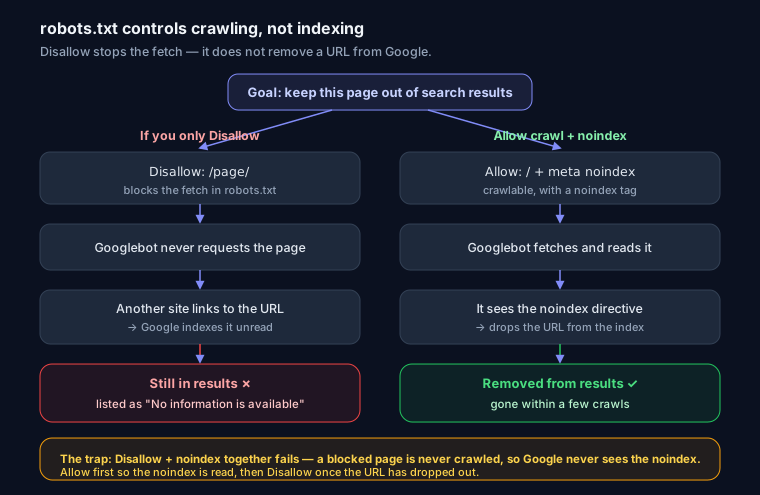
So if your goal is "keep this out of search results," robots.txt is the wrong tool. You need a noindex signal, which the crawler has to actually read the page to see:
<meta name="robots" content="noindex">
Or the header equivalent for non-HTML files like PDFs:
add_header X-Robots-Tag "noindex" always;
The trap: if you Disallow the page and add noindex, Google can't crawl it, so it never sees the noindex, and the URL can linger in the index anyway. To deindex, allow crawling and use noindex — then, once it's dropped out, you can Disallow it. You can generate either signal with the robots meta / X-Robots-Tag generator, and the difference between blocking and de-duplicating is covered in Canonical URLs explained. For anything truly private, neither robots.txt nor noindex is security — use authentication or a password.
Crawl budget: mostly a big-site problem
"I need robots.txt to save crawl budget" is usually premature. Google crawls small and medium sites (say, under ~10k URLs) about as often as it wants to; you're not fighting a limit. Crawl budget becomes real when you have hundreds of thousands of URLs, faceted navigation generating infinite parameter combinations, or a slow server where every crawl request costs you. There, blocking low-value URL patterns (?sort=, ?sessionid=, internal search results) keeps Googlebot focused on pages that matter. For a normal blog or brochure site, don't over-engineer it.
How matching works
User-agent selection
A crawler reads the file, finds the group whose User-agent line best matches its name, and obeys only that group. Matching is by longest (most specific) token, case-insensitive. Given:
User-agent: *
Disallow: /internal/

User-agent: Googlebot
Disallow: /no-google/
Googlebot uses the second group only — it ignores the * group entirely, so /internal/ is not blocked for Googlebot. If you want a rule to apply to everyone including a specifically-named bot, you have to repeat it in that bot's group.
Allow vs Disallow precedence
Within a group, Google doesn't go top-to-bottom. It picks the rule with the longest path match; if an Allow and a Disallow tie on length, Allow wins. This lets you carve exceptions:
User-agent: *
Disallow: /downloads/
Allow: /downloads/public/
/downloads/public/report.pdf is allowed (longer match), while everything else under /downloads/ stays blocked. Note Bing's engine leans more on rule order, so keep patterns unambiguous rather than relying on subtle length ties.
Wildcards: * and $
Two special characters, both supported by Google and Bing:
*matches any sequence of characters.$anchors the end of the URL.
User-agent: *
Disallow: /*?           # any URL containing a query string
Disallow: /*.pdf$       # any URL ending in .pdf
Allow: /*.js$           # (usually unnecessary — see below)
Disallow: /*.pdf$ blocks /report.pdf but not /report.pdf?v=2 (the $ requires .pdf to be the literal end).
Trailing-slash gotcha
Disallow: /blog blocks /blog, /blog/, /blogging, and /blog-archive — it's a prefix, not an exact path. If you only mean the folder, write Disallow: /blog/ with the trailing slash. Getting this wrong quietly blocks pages you never intended to.
Crawl-delay
User-agent: *
Crawl-delay: 10
Google ignores Crawl-delay completely. Bing and Yandex honor it. To throttle Googlebot, set the crawl rate in Search Console instead (or just serve pages faster).
Platform templates
WordPress serves a virtual robots.txt if no physical file exists. A sane starting point:
User-agent: *
Disallow: /wp-admin/
Allow: /wp-admin/admin-ajax.php

Sitemap: https://example.com/sitemap_index.xml
Next.js (App Router) — generate it dynamically so it stays in sync with your environment:
// app/robots.ts
import type { MetadataRoute } from 'next'

export default function robots(): MetadataRoute.Robots {
  return {
    rules: { userAgent: '*', allow: '/', disallow: ['/api/', '/admin/'] },
    sitemap: 'https://example.com/sitemap.xml',
  }
}
Static site (nginx) — just drop a file at the web root; make sure it's served as text/plain and not swallowed by a catch-all route.
Whichever platform, pair robots.txt with a real sitemap — see the XML Sitemap guide for the Sitemap: directive and how the two work together — and generate a clean file fast with the robots.txt generator.
Before / after
A blog owner wanted to keep their tag archives out of Google. They wrote:
User-agent: *
Disallow: /tag/
Disallow: /css/
Disallow: /js/
Two problems: blocking /css/ and /js/ stops Google rendering the site (it can't see your layout or interactive content, which hurts rankings), and Disallow: /tag/ doesn't deindex the tag pages already in Google — it just freezes them. Fixed version:
User-agent: *
Allow: /

Sitemap: https://example.com/sitemap.xml
...combined with <meta name="robots" content="noindex,follow"> on the tag templates themselves. Crawlable, renderable, and the tag pages actually drop out of the index over the next few weeks.
Common mistakes
- Blocking CSS/JS. Google renders pages like a browser. Block the assets and you can tank how it understands your content. Almost never disallow these.
- Treating it as security. The file is world-readable and often advertises your sensitive paths. Use auth.
- Blocking staging, then shipping the block to production. A
Disallow: /on staging that gets deployed live will quietly remove your whole site from Google. This is the classic launch-day disaster — check production's robots.txt on day one. - Assuming Disallow deindexes. Covered above. It doesn't.
- Prefix vs folder trailing-slash slips.
Disallow: /newalso blocks/newsletter.
FAQ
Do I even need a robots.txt? Not strictly. A missing file means "crawl everything," which is a fine default. Add one when you have paths to exclude or a sitemap to advertise.
Why is my page still in Google after I disallowed it? Because Disallow blocks crawling, not indexing. Remove the Disallow, add noindex, let Google re-crawl, then re-block if you want.
Can I have more than one Sitemap line? Yes — list each on its own Sitemap: line, with absolute URLs. They can sit anywhere in the file.
How do I know if a specific page is blocked? Run the URL through the SEO Snapshot analyzer — it fetches your robots.txt, tells you whether the page is crawlable, checks for a sitemap reference, and flags accidental blocks. It's a fast sanity check before and after a launch, and pairs well with a full technical SEO audit.